






A team spends weeks polishing a launch build. The Figma file looks clean. The iPhone simulator looks clean. Then someone hands the app to an investor using a different device, and the product suddenly feels unfinished. Text wraps awkwardly. The primary button collides with a bottom sheet. A chart that looked balanced on one screen now feels cramped and unreadable.
That moment is not a visual bug. It is a product strategy bug.
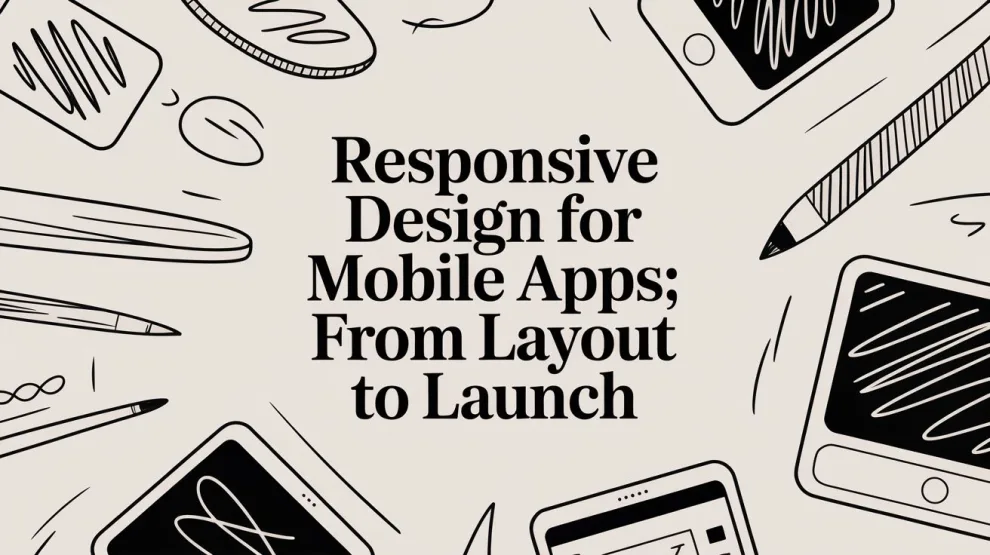
Responsive design for mobile apps is what turns a design system into a usable product across the devices people carry. It is not about making one screen “fit.” It is about preserving hierarchy, touchability, readability, and performance when the app leaves your preferred test device and meets the actual market.
Why Your App Looks Broken on Your Investor's Phone
The failure usually starts with a reasonable shortcut. A team designs around one modern phone size, builds fast, then assumes Auto Layout, ConstraintLayout, or a cross-platform framework will smooth over the differences. It rarely does.
A screen can look “mostly fine” and still fail the demo. The top nav may sit too close to a notch. A pricing card may require horizontal scanning instead of vertical scanning. A key CTA may be technically visible but physically awkward to tap with one hand. None of those issues show up in a static mockup.
The market punishes fragile layouts
Mobile is not the edge case anymore. As of the second quarter of 2025, mobile devices accounted for 62.54% of all global website traffic, excluding tablets, according to Gluestack’s responsive design analysis. The same source notes that 61% of mobile users are unlikely to return to an app or site that is hard to use on their phone, and that responsive implementations can reduce bounce rates by up to 40%.
That is why responsive design for mobile apps belongs in product planning, not just front-end cleanup.
If your team is still treating screen variation as a QA chore, review a current spread of mobile screen sizes in active use. The point is not memorizing dimensions. The point is accepting that “works on my phone” is not a release criterion.
What broken really means
A broken app is not always crashing. More often, it is doing one of these:
- Forcing precision taps: Small controls make routine tasks feel risky.
- Breaking reading rhythm: Dense cards, clipped labels, and poor line length increase cognitive load.
- Hiding priorities: Secondary UI can crowd out the one action that matters.
- Creating layout distrust: Users hesitate when screens shift unpredictably between portrait orientation, a wider screen format, or different devices.
A responsive app protects the user’s flow. That matters more than preserving every pixel of the original mockup.
The Three Pillars of a Responsive App
A strong responsive system behaves less like rigid wooden blocks and more like LEGO bricks. The pieces still have rules, but they can reorganize without losing structure.

Flexible layouts
Start with the frame, not the decoration. Flexible layouts let content containers grow, shrink, stack, or reposition according to available space.
That means favoring relative sizing and layout relationships over fixed dimensions. In Android, teams lean on dp and sp. In iOS, the equivalent thinking uses points. The principle is the same. Define spacing, alignment, and growth behavior so the interface adapts instead of snapping apart.
A few practical rules work well:
- Anchor by intent: Pin elements relative to safe areas, siblings, and container edges.
- Let one thing dominate: On every screen, identify the primary action or content block and let it claim the most stable space.
- Avoid decorative symmetry: Perfect visual balance often breaks first on smaller screens.
Fluid media and typography
Images, icons, and type cause many responsive failures because teams optimize for sharpness without controlling weight and hierarchy.
Responsive design ensures clarity across screen densities, from Android’s 360×640 baseline to 1440×3200 resolutions, by using density-independent pixels and platform-aware units, as summarized in Ironpaper’s responsive design statistics. The same source notes that 75% of users prefer mobile-friendly apps, while 50% express frustration at non-responsive interfaces.
That is the technical reason to define media behavior up front:
- Raster images need fallbacks: Large hero assets should not load identically on every device tier.
- Typography needs a scale: Headline, body, caption, and button labels should adjust predictably.
- Icons should survive density jumps: Vector assets help, but they do not solve poor spacing.
A good test is simple. If a label expands by a few words, does the interface still read cleanly?
Intelligent breakpoints
Breakpoints are not magic numbers. They are decision points where the layout changes because the current arrangement no longer serves the task.
Designers often think in artboards. Engineers need behavioral rules. Product managers need to understand both. The best breakpoint strategy reflects user intent:
- On tighter screens, stack supporting content below the main task.
- On larger screens, reveal secondary context without splitting attention.
- When the device is oriented horizontally, avoid stretching portrait layouts.
For teams refining screen systems, this broader view of mobile UI and UX practice helps align design intent with implementation reality.
If your breakpoint only changes spacing, you probably have a styling adjustment, not a responsive strategy.
Responsive vs Adaptive Choosing Your Design Strategy
Teams often make an expensive mistake. They frame responsive versus adaptive as a design preference. It is a delivery choice with architecture, QA, and maintenance consequences.
Responsive design uses one flexible layout system that reflows across devices. Adaptive design prepares targeted layouts or behaviors for defined device contexts.
Neither is automatically better.
Where responsive wins
Responsive is usually the right default when the app’s core challenge is content organization, form entry, browsing, or standard transactional flows. Shared layout logic lowers overhead and keeps design systems coherent.
According to Beecrowd’s comparison of responsive and adaptive mobile design, responsive design can simplify maintenance by up to 50% via a shared codebase and is efficient for 90% of cases.
That matters when the team is shipping often and cannot afford to maintain multiple layout branches.
Where adaptive wins
Adaptive becomes attractive when the app has heavier interaction patterns, complex canvases, or device-specific constraints. Think finance dashboards, logistics tools, media-heavy experiences, or interfaces that need different information density depending on hardware.
The same Beecrowd source states that adaptive design can achieve 20-30% faster load times by serving only necessary assets, can reduce CPU usage by 35% on specific devices, and can improve session lengths by 40% in the right scenarios.
That is not a reason to overbuild. It is a reason to reserve adaptive effort for places where the user experience or performance profile clearly justifies it.
Responsive vs. Adaptive Design Decision Matrix
| Criterion | Responsive Design | Adaptive Design | Best For |
|---|---|---|---|
| Development effort | Lower initial complexity with one flexible system | Higher upfront planning due to custom variants | Responsive for lean teams and fast iteration |
| Maintenance | Shared code and shared layout logic are easier to keep aligned | Separate layout paths increase long-term coordination | Responsive for apps with frequent UI updates |
| Performance tuning | Broadly good, but less precise per device class | More precise control over assets and interaction cost | Adaptive for performance-sensitive screens |
| UX control | Consistent experience across many screens | Finer control for specific devices or contexts | Adaptive for specialized workflows |
| Future changes | Easier to extend if design system is strong | Strong when target contexts are well defined | Responsive for uncertain device spread |
| Best fit | Browsing, forms, feeds, account management | High-interaction tools, media-rich surfaces, specialized workflows | Hybrid for many mature products |
A practical decision rule
Choose responsive as the base system. Add adaptive overrides only where one of these is true:
- The screen is interaction-heavy
- The screen carries heavy media
- The screen is business-critical and measured tightly
- A device class consistently struggles with the default layout
That hybrid approach avoids the worst pattern of all. A team trying to handcraft every screen for every device before it has evidence.
Platform-Specific Implementation Patterns
The implementation details differ by platform, but the philosophy is shared. Describe relationships, not coordinates. Let the system calculate layout within rules you control.

iOS with Auto Layout and SwiftUI
On UIKit projects, Auto Layout works best when developers think in constraints tied to intent. A title belongs above a description. A CTA stays pinned to the safe area. A card grows vertically with content. That mindset produces screens that survive localization, dynamic type, and device rotation.
Common implementation patterns include:
- Constraint priorities: Let less important elements compress first.
- Safe area awareness: Respect notches, home indicators, and modal presentations.
- Content hugging and compression resistance: Decide what stretches and what truncates.
A typical example is a checkout screen. The summary area can scroll. The confirm button should remain accessible. Promotional content should collapse before the core payment controls do.
In SwiftUI, this gets cleaner because layout is more compositional. VStack, HStack, Spacer, GeometryReader, and environment values give teams a more declarative way to express adaptation. The risk in SwiftUI is not inability. It is over-nesting and relying on previews instead of interaction testing.
Android with ConstraintLayout and Jetpack Compose
On legacy or XML-based Android screens, ConstraintLayout remains practical because it creates a flatter hierarchy than heavily nested containers. That helps readability and often helps rendering efficiency too.
Good Android responsive patterns usually involve:
- Constraint chains for balanced distribution
- Guidelines for proportional spacing
- Alternate arrangements when width or height gets tight
- Scrollable containers only where needed, not as a fix for bad structure
A weak Android layout often “works” because everything is scrollable. A strong one lets users complete the main task without hunting through accidental whitespace and oversized wrappers.
With Jetpack Compose, responsive work becomes more direct. Developers can branch on available width, window characteristics, and orientation inside the UI logic without creating a maze of XML variants. That makes it easier to maintain a single mental model across states.
Cross-platform frameworks
React Native and Flutter can support excellent responsive design for mobile apps, but only if teams resist web habits and platform denial.
What works:
- Shared design tokens
- Platform-aware spacing and typography
- Reusable container components
- State-driven layout changes
What fails:
- Pixel-perfect parity as a goal
- One giant screen component with dozens of conditional branches
- Treating tablet, horizontal orientation, or split-view as afterthoughts
The cleanest responsive implementation is usually the one with the fewest exceptions, not the one with the most conditional code.
The Hidden Performance Cost on Budget Devices
A visually consistent interface can still be unfair to the user.
That is the blind spot in a lot of responsive design advice. It assumes that if the layout scales, the experience scales. It does not. A flexible UI can be responsive in shape and irresponsible in cost.

One layout can burden weaker hardware
Design Develop Now’s analysis of mobile app responsive design gaps identifies a critical issue: a single responsive layout may consume 2-3x more resources on lower-end hardware, and 40-50% of smartphone users in the U.S. still use mid-range or older devices. The same source argues that teams need breakpoint strategies paired with performance budgets and conditional asset loading.
That should change how product teams define “done.”
A budget Android device may render the same feed, but if the screen relies on oversized images, layered shadows, video previews, animated charts, and constant recomposition, the user pays in stutter, heat, and battery drain. The layout is not broken. The experience is.
Build for device classes, not just dimensions
Screen width alone is too blunt. Teams should think in device classes:
| Device class | Typical risk | Better response |
|---|---|---|
| Lower-end phones | Heavy assets, animation jank, long first render | Reduce image weight, simplify motion, defer non-core content |
| Mid-range phones | Mixed performance under load | Keep defaults lean, progressively enhance where stable |
| Flagship phones | Visual and interaction expectations are higher | Enable richer polish, but keep fallback paths clean |
This does not mean creating a second-class product. It means protecting the core task first.
Practical controls that work
Use responsive rules to govern cost, not just layout.
- Conditional asset loading: Serve smaller images or lighter illustrations when device capability is limited.
- Progressive disclosure: Delay non-essential modules until the main screen is interactive.
- Animation discipline: Reserve complex transitions for places where they support comprehension, not decoration.
- Performance budgets: Set limits for screen weight, asset count, and startup complexity per critical flow.
A common anti-pattern is the “hero-first” home screen. Teams load promotional banners, auto-playing content, and layered cards before the core account or commerce action is ready. On lower-end phones, that decision feels like instability.
If a budget device cannot complete the primary task smoothly, the layout strategy failed, even if the screenshot looks consistent.
Balancing Screen Space with Accessibility Needs
Small-screen responsiveness and accessibility often pull in opposite directions.
Responsive design pushes teams to compress. Accessibility pushes them to enlarge, separate, clarify, and preserve order. Both are right. The problem is that most guidance treats them as separate checklists.
The conflict is real
AFIxt’s accessibility guidance highlights a gap that many teams feel in practice: standard advice does not resolve the tension between compressed mobile layouts and WCAG AA expectations for large touch targets such as 48×48 dp and sufficient spacing.
A compact screen invites trade-offs. The mistake is making those trade-offs implicitly.
When teams shrink touch targets to fit one more button in a row, they create tap errors. When they reorder content visually without considering reading order, screen reader users get a disjointed experience. When they collapse labels into icons to save space, discoverability drops for everyone.
Use a decision framework, not a checklist
A workable framework starts with task criticality.
If the element is primary, preserve access
Primary actions should keep visible labels, stable placement, and generous tap area. Do not solve a spacing issue by shrinking the button users need most.
If the element is secondary, defer it
Secondary information can move behind accordions, “more” actions, or progressive disclosure patterns. That is better than compressing the whole screen until everything becomes harder to use.
If layout reflow changes reading order, test assistive flow
Visual adaptation is not enough. Teams need to verify that focus order, announcement order, and grouped controls still make sense after reflow.
Breakpoint-specific accessibility rules
Many design systems stop too early in this area. Teams define spacing tokens and breakpoints, but not accessibility behavior at those breakpoints.
Use explicit rules such as:
- Small screens: Increase vertical stacking, preserve touch targets, reduce side-by-side controls.
- Medium screens: Reintroduce supporting actions if spacing remains clear.
- Horizontal orientation or tablet: Expose more context, but do not split related controls so far apart that navigation becomes slower.
Also account for text expansion and language variation. German labels can break tidy button rows. Right-to-left layouts can expose assumptions hidden in icon placement, back navigation, and inline action grouping. Responsive design for mobile apps is incomplete if it only works for short English strings.
A Pragmatic Testing and QA Workflow
Responsive bugs survive when testing is informal. Someone glances at two simulators, signs off, and the device matrix gets outsourced to production users.
A workable QA workflow is tiered. It starts cheap, becomes systematic, and scales with product risk.

Tier one with emulators and previews
Use Xcode simulators, Android Studio emulators, SwiftUI previews, and Compose previews early. They are fast, cheap, and good at exposing clipping, overflow, and orientation issues.
But treat them as filters, not proof.
A useful baseline is to verify:
- Smallest supported phone flow
- Common modern phone flow
- Large phone or tablet-adjacent flow
- Portrait and horizontal orientation states
- Text scaling and system accessibility settings
Tier two with a real device set
Every team needs a small physical test bench. Not dozens of devices. A representative spread.
Pick devices that expose different failure modes:
- A smaller screen phone
- A larger modern phone
- An older or slower Android device
- An iPhone with current OS behavior
- A tablet if your app supports it
Here, touch reach, perceived latency, keyboard overlap, and readability become apparent.
Tier three with automation and cloud coverage
As the product matures, move repetitive checks into CI. Screenshot testing, layout regression testing, and flow-level UI tests catch issues before release candidates pile up.
Cloud device farms are useful when your market footprint expands or release cadence speeds up. They are especially helpful for validating edge combinations your in-house device bench does not cover.
Teams that need a more formal process can adapt ideas from a mobile testing strategy document and tie responsive checks to release gates instead of discretionary QA passes.
Responsive QA works best when every critical screen has named owners, expected behaviors by breakpoint, and a pass/fail definition that is visible to design, product, and engineering.
Your Pre-Launch Responsive Design Checklist
Most launch issues are not caused by missing knowledge. They are caused by missing decisions.
A pre-launch checklist should make those decisions visible by role. That keeps responsive design for mobile apps from becoming “everyone’s job” and therefore nobody’s job.
Product manager checks
- Target device tiers are defined: The team knows which device classes matter most for the release.
- Critical flows are named: Signup, checkout, booking, upload, messaging, or other revenue and retention paths have explicit responsive acceptance criteria.
- Performance trade-offs are approved: Richer visuals are not being shipped by default without considering lower-tier hardware.
- Accessibility is treated as release quality: The team has agreed where compression is acceptable and where it is not.
Designer checks
- Primary actions stay primary at every breakpoint: The main CTA does not get buried by promotional or secondary content.
- Touch targets and spacing remain usable: Tight screens do not force precision taps.
- Text expansion is tested: Long labels, larger text settings, and alternate content states do not break hierarchy.
- Reading order still makes sense: Reflow has not created confusion for screen readers or keyboard-style navigation patterns.
Engineer checks
- Layout rules are intentional: No screen depends on accidental behavior from nested containers or fixed dimensions.
- Assets are loaded appropriately: Heavy media is not shipped uniformly to every device context.
- Orientation and state changes are safe: Rotation, keyboard appearance, and dynamic content updates do not create overlap or clipping.
- Automated checks pass: Screenshot or regression tests cover the screens most likely to break.
Shared team checks
Use this as the final gate before launch:
| Area | Launch question |
|---|---|
| Layout | Does each core screen preserve hierarchy on small and large phone sizes? |
| Performance | Does the primary task stay smooth on weaker devices? |
| Accessibility | Are controls reachable, readable, and logically ordered after reflow? |
| Content | Do longer strings, empty states, and errors still fit cleanly? |
| QA | Have real devices confirmed what simulators suggested? |
A polished release is not the one with the most layout variants. It is the one where the team made explicit choices about structure, speed, and access, then validated those choices on the devices customers use.
If your team is planning, redesigning, or hardening a mobile product for the U.S. market, Mobile App Development offers practical guidance across strategy, design, engineering, testing, performance, and launch. It is a useful resource for founders, product leaders, designers, and developers who need sharper execution, not generic app advice.



Add Comment